How do Clip Suggestions work?
Unspool Studio's Clip Suggestions feature runs in the background and delivers ready-to-export video clips every time your subscribed podcasts publish new episodes. It detects new episodes from RSS feeds, transcribes the audio, identifies speakers, finds the most compelling moments, scores each clip on viral potential, and pre-loads everything into a canvas — all without any action from you. You open the Clip Suggestions page and start reviewing.
What happens for each episode?
When a new episode drops on a podcast you've subscribed to, Clip Suggestions handles everything automatically:
- Detects the new episode from the podcast's RSS feed using smart schedule-aware polling
- Transcribes the full audio with AI speech-to-text and word-level timestamps
- Identifies speakers using podcast metadata — host names, guest info from RSS tags, episode descriptions
- Analyzes the transcript to find the most compelling, shareable moments — quotes, insights, stories, debates, and funny exchanges
- Scores each clip on hook strength and viral potential so the best moments surface first
- Creates a canvas with all suggested clips pre-loaded and ready to edit or export
- Notifies you when clips are ready for review
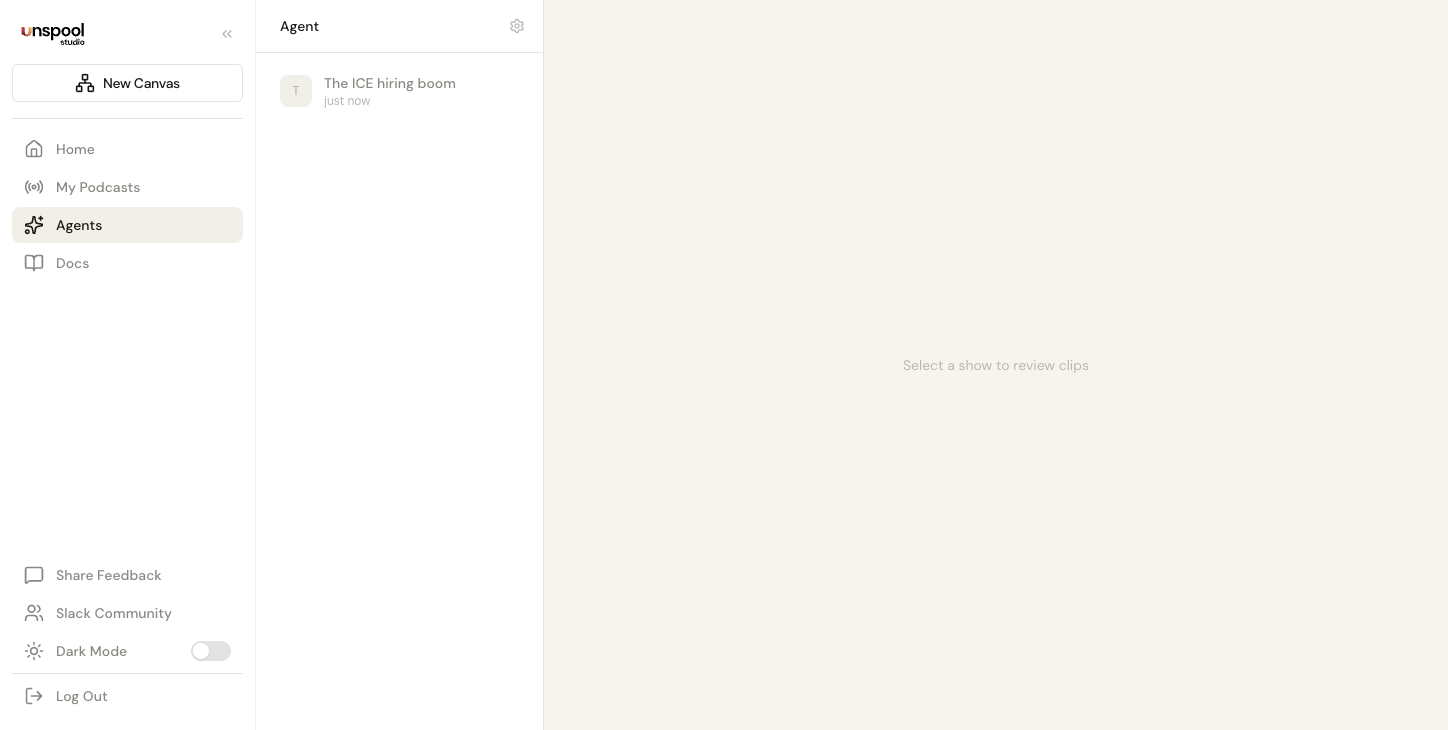
The progress indicator shows each stage: Transcribing → Finding speakers → Finding clip-worthy moments → Setting up your canvas.
How do I set up Clip Suggestions?
Three steps:
- Subscribe to a podcast — Search for any podcast in My Podcasts and subscribe
- Enable Clip Suggestions — Toggle it on for any subscribed podcast (up to 3 during private beta)
- Wait for new episodes — When the podcast publishes, Clip Suggestions picks it up and starts processing
That's it. If you're subscribed and have it enabled, Clip Suggestions is watching. Smart polling learns each podcast's release schedule so episodes are detected faster during likely publish windows.
How do I review AI-suggested clips?
Each episode displays a responsive grid of AI-suggested clips. Scan all clips at a glance with thumbnails, titles, and scores, then click any clip to open a full-detail modal.
- Content type labels tell you what kind of moment it is — Story, Insight, Quote, Debate, or Funny
- Hook score and viral potential (1–10) help you prioritize which clips to post first
- Modal detail view — Full video preview, expandable transcript, and navigation arrows between clips
Three actions per clip:
- Download — Downloads the video and opens a social copy modal with AI-generated text tailored to your selected platform (X, LinkedIn, Threads, Instagram)
- Edit in Canvas — Opens the full canvas editor to fine-tune boundaries, transcript text, or export settings
- Delete — Removes the clip from your queue
Giving feedback
Use the thumbs up and thumbs down buttons on each episode's message in the Clip Suggestions view. The AI tracks your feedback — approvals, rejections, and edits — and learns your preferences over time: ideal clip duration, content types you favor, topics you focus on, and hook strength you prefer. Improvements apply within 2–3 episodes.
What preferences can I customize?
Open preferences from the settings button on the Clip Suggestions page:
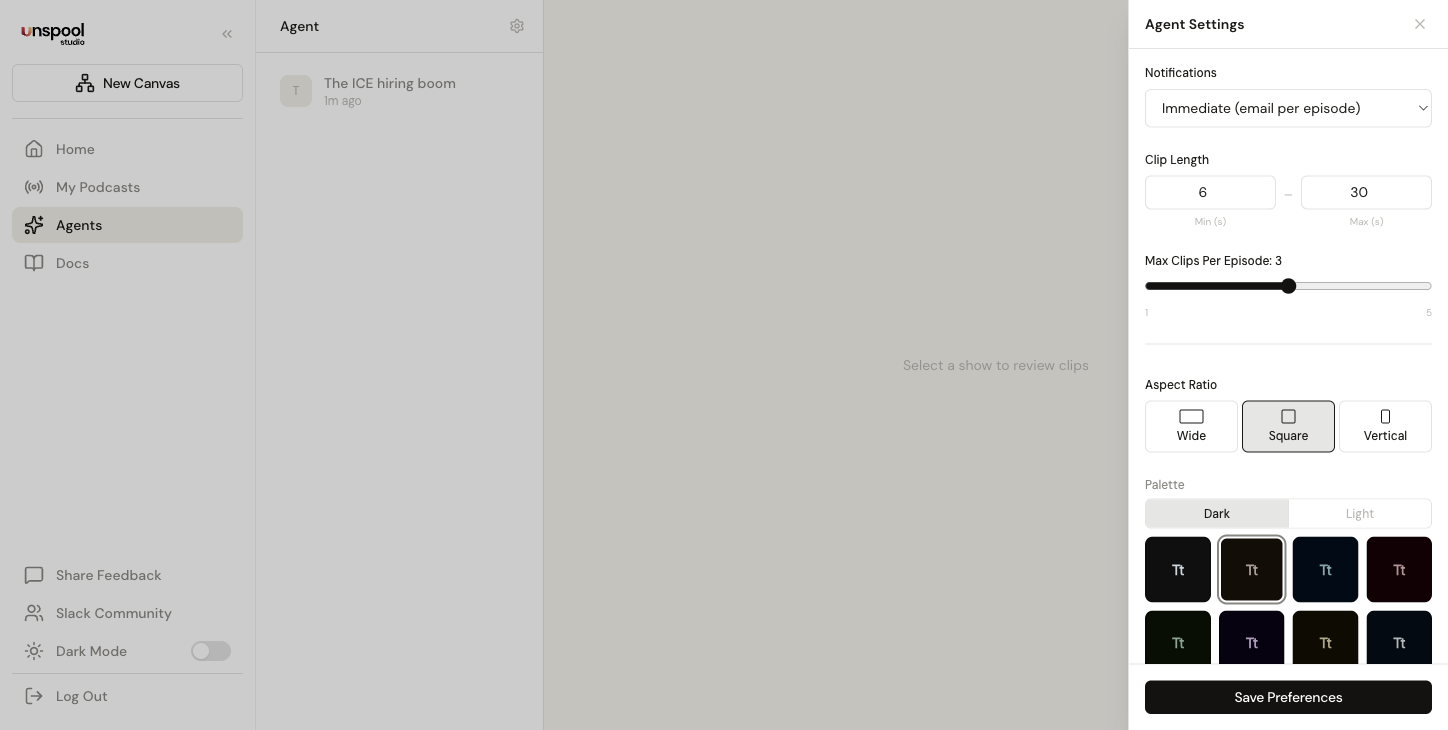
- Notification Frequency — Choose how you're notified when clips are ready:
- Immediate — Email per episode with a direct link to review
- Daily Digest — One email per day at 9 AM UTC summarizing all processed episodes
- Off — No emails; check the Clip Suggestions page manually
- Clip Length Range — Set minimum and maximum clip duration (in seconds). Clip Suggestions respects your range for all future suggestions.
- Max Clips Per Episode — Control how many clips the AI suggests per episode (1–5, default 3)
- Aspect Ratio — Set your default: 16:9 (YouTube/LinkedIn), 1:1 (Square/X), or 9:16 (Reels/TikTok/Shorts)
- Color Palette — Choose from 16 palettes (8 dark, 8 light) to match your brand. Toggle between dark and light mode categories.
- Caption Font — Pick from 9 font presets including Inter, Playfair Display, Georgia, and JetBrains Mono
These preferences apply to all suggested clips. You can override any setting per-clip in the canvas editor.
How do I edit suggested clips?
Click Edit in Canvas on any clip to open the full editor. Clip Suggestions has already created a canvas with the episode and all its clips pre-loaded. You land directly in the editor where you can:
- Drag boundary handles in the transcript to adjust where the clip starts and ends
- Edit transcript text — Click any word to fix transcription errors in the captions
- Change export settings — Switch aspect ratios, palettes, fonts, or toggle captions per-clip
- Export — Download the clip as video with subtitles, or export the transcript as text
Changes sync between the Clip Suggestions view and canvas.
How do I pause Clip Suggestions for a specific podcast?
Each podcast thread has a three-dot menu in the header. Click it to toggle Pause thread / Resume thread. Pausing stops automatic processing for that show while preserving all existing clips and thread history. Resume anytime to restart processing. A "Paused" badge appears in the thread header so you can see paused shows at a glance.
What happens after I download a clip?
A social copy modal appears with AI-generated text tailored to your selected platform. Pick between X, LinkedIn, Threads, and Instagram. Toggle between short and long copy, edit the text inline, or enter a custom prompt to regenerate. Click "Copy to Clipboard" and post alongside your video. Your preferred platform is remembered across sessions.
Frequently Asked Questions
How long until clips are ready after an episode publishes?
Most episodes are transcribed and analyzed within 5–10 minutes of being detected, depending on episode length. You'll see a progress indicator showing the current stage. Shorter episodes (under 45 minutes) typically finish in under 5 minutes.
What happens when I delete a clip?
Deleting removes the clip from your Clip Suggestions view and canvas, but the episode, other clips, and your thread remain unaffected. Deleted clips also feed into the AI's learning system — rejections help refine future suggestions.
Does Clip Suggestions learn from my feedback?
Yes. Thumbs up/down on episode messages, plus every approve, reject, and edit you make, all feed into the AI's preference model. It learns your ideal clip duration, content types, topics, and hook strength — and applies this to future suggestions within 2–3 episodes.
Can I change export settings for individual suggested clips?
Yes. Clip Suggestions preferences set defaults for all new clips, but clicking Edit in Canvas on any clip lets you override aspect ratio, palette, font, and any other setting before exporting.
Do I need to keep the app open for Clip Suggestions to work?
No. Clip Suggestions runs entirely on Unspool Studio's servers. It detects new episodes, transcribes audio, identifies speakers, and suggests clips 24/7 whether or not you're logged in. Clips are ready for review whenever you return.
How many podcasts can I enable Clip Suggestions on?
During private beta, Clip Suggestions supports up to 3 podcasts per account. A usage indicator on the Podcasts page shows your current count (e.g., "2/3"). The toggle is disabled when you've reached the limit — disable one podcast to enable another.
Can I disable automatic clip suggestions after transcription?
Yes. In Account Settings, toggle off Auto-Suggest Clips. When disabled, transcribing an episode on the canvas won't trigger automatic clip analysis. This is useful when you prefer to find moments manually.
Can I use Clip Suggestions and manual clipping together?
Yes. Clip Suggestions handles your regular subscriptions automatically. For one-off episodes or content not in the podcast directory, use the manual canvas workflow. Both feed into the same AI learning system.
Related: AI Transcription | Editing Clips | Export Formats