How does AI podcast transcription work?
Unspool Studio's AI transcription converts episodes into word-level timestamped text in minutes — automatically. The AI transcribes directly from podcast feeds — no uploads needed — then identifies speakers, segments the transcript, and suggests the best clips to share. It's the fastest path from audio to exportable video clips.
What happens when I add an episode?
When you add an episode to a canvas, transcription starts automatically. Unspool Studio processes the full audio and delivers a complete, browsable transcript. Here's what happens behind the scenes:
- Streams the episode audio directly from the podcast's RSS feed — no file downloads or format conversions
- Generates word-level timestamps using AI speech-to-text for precise clip boundaries
- Segments the transcript by speaker turns and natural pauses for easy browsing
- Identifies speakers automatically — the AI uses podcast metadata (host names, guest info from RSS tags, episode descriptions) to label who's speaking
- Analyzes the content and suggests clips — the AI identifies the most compelling, shareable moments in the entire episode
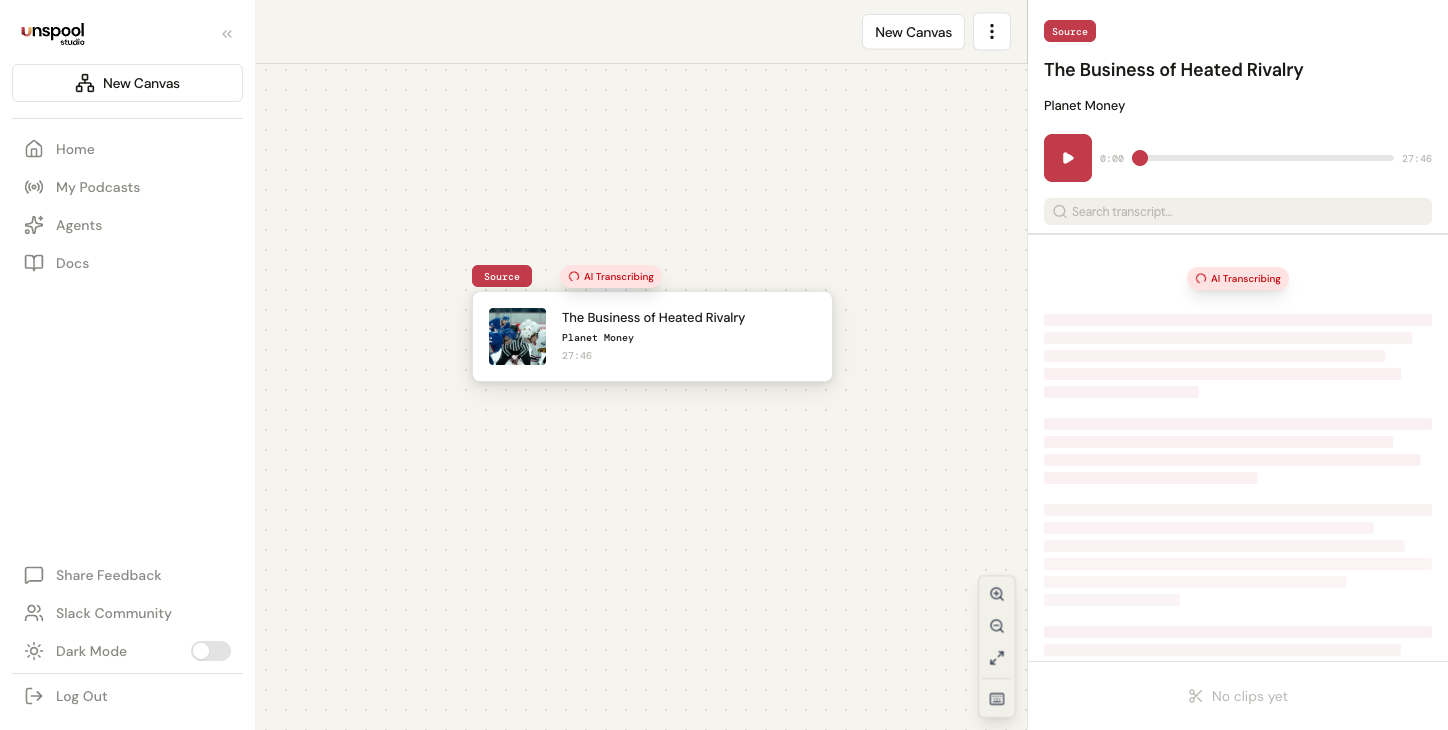
That final step sets Unspool Studio apart. Most transcription tools stop at text. Unspool Studio reads the transcript and surfaces moments worth clipping — standout quotes, key insights, emotional beats, and exchanges that work as standalone content. You get a curated shortlist instead of scanning through an hour of text.
How long does transcription take?
- Short episodes (under 45 minutes): Often under a minute; longer episodes in this range may take up to a few minutes. You'll see a live progress indicator.
- Long-form episodes (2+ hours): Process reliably in the background using webhook-based async processing. You can navigate away, close the tab, or work on other canvases — a notification appears when it's ready.
- Speaker identification happens during transcription — speaker names from podcast metadata are matched to voices in the transcript. Named speakers appear as soon as the transcript is ready; unrecognized speakers show as "Speaker A", "Speaker B" and can be renamed manually.
Why is this faster than traditional podcast clipping?
Unspool Studio eliminates the slowest parts of the traditional workflow:
- No downloads — Audio streams directly from the podcast RSS feed
- No software — Everything runs in your browser
- No manual scanning — The AI reads the transcript and suggests clips for you
- No subtitle typing — The AI transcript becomes your animated captions automatically
- No speaker tagging — Speaker identification is automatic using podcast metadata
The result: you go from selecting an episode to having exportable video clips in minutes, not hours.
What affects transcription accuracy?
Unspool Studio achieves 95%+ accuracy on professionally produced podcasts with clear audio. Accuracy depends on several factors:
- Audio clarity — Clear recordings with minimal background noise produce the best results
- Speaker count — Single-speaker content is typically more accurate than multi-speaker discussions with overlapping speech
- Language — English language content currently produces the highest accuracy
- Audio quality — Higher bitrate recordings (128kbps+) improve transcription
- Speaking pace — Normal conversational pace transcribes better than very fast or mumbled speech
If a segment has errors, click into any word in the transcript to edit it. Text edits update the subtitle overlay in video exports — the audio stays unchanged.
How do I use my transcript?
After transcription completes, you can work with the transcript in several ways:
- Review AI-suggested clips — Start here. The AI has already identified the best moments.
- Browse by segment — Each segment shows speaker labels, timestamps, and text for easy scanning
- Click any word to play — Hear that exact portion of the audio instantly
- Select text to create clips — Highlight a segment and press Enter to create a clip
- Search within — Use the search bar to find specific words, topics, or speaker names
- Export the transcript — Download in five formats: plain text, Markdown, HTML, SRT subtitles, or WebVTT
How does speaker identification work?
Speaker identification happens during transcription itself. Unspool Studio passes candidate speaker names from podcast metadata — host names, guest names from <podcast:person> RSS tags, and episode descriptions — to the transcription engine, which returns named speakers directly in the transcript result. No separate identification step is needed.
- Named speakers: When the AI can match a voice to podcast metadata, the speaker's name is displayed (e.g., "Joe Rogan")
- Generic labels: When the AI can't determine identity, speakers appear as "Speaker A", "Speaker B" — you can rename these by clicking the label in the transcript
- Ad segments: Speakers whose content is primarily ads are automatically labeled and dimmed
Speaker labels appear in the transcript, in multi-speaker video exports with alternating caption alignment, and in transcript exports. You can edit speaker names and reassign segments at any time — see the Multi-Speaker Clips guide for details.
Can I auto-transcribe new episodes?
Yes. Enable auto-transcribe on any podcast from My Podcasts. When the podcast publishes a new episode, Unspool Studio detects it and queues it for transcription automatically. Here's how it works:
- Per-podcast toggle — Enable or disable auto-transcription individually for each subscription
- Smart detection — Unspool Studio learns each podcast's release schedule and checks more frequently during likely publish windows
- Most recent episode — Auto-transcription processes the latest episode published within the past 7 days
- Background processing — Transcription, speaker identification, and clip suggestions all run automatically. Clips are ready when you open the Clip Suggestions page.
This pairs with Clip Suggestions — enable it on your subscriptions and everything from detection to clip delivery is handled automatically.
Can I upload my own audio files?
Yes. In addition to streaming from podcast feeds, you can upload audio files directly. Supported formats include MP3, M4A, WAV, WebM, OGG, and MP4 (up to 200MB). Uploaded files transcribe using the same AI pipeline and receive the same speaker identification and clip suggestion features.
How do I get the best transcription results?
- Use professionally produced podcasts with clear audio and normal speaking pace
- For multi-speaker episodes, speaker labels are applied automatically — no manual tagging needed
- Longer episodes may take more time; the progress indicator shows real-time status
- If audio quality is poor, look for a higher-quality version in the iTunes directory
- Edit transcript text directly when creating clips — click any word to fix it
Frequently Asked Questions
How long does AI podcast transcription take?
Short episodes often finish in under a minute. Longer episodes may take a few minutes, and long-form content (2+ hours) processes reliably in the background — you can navigate away and come back. Speaker identification and clip suggestions follow immediately after the transcript is ready.
Can I edit the transcript?
Yes. Click into any word in the transcript to edit it — useful for fixing proper nouns, technical terms, or unusual words. Edits update the subtitle overlay in video exports while the audio stays unchanged. Changes persist on the clip and sync across all views.
Does Unspool Studio transcribe any podcast?
Any podcast available through the iTunes directory can be transcribed. Audio streams directly from the feed with no file uploads. You can also upload your own audio files (MP3, M4A, WAV, and more, up to 200MB) for content that isn't in the directory.
Do I get speaker labels automatically?
Yes. Speaker identification happens during transcription — the AI uses podcast metadata to label speakers by name when it can match a voice, or as "Speaker A/B/C" when it can't. You can rename any speaker by clicking the label in the transcript. Ad segments are automatically detected and dimmed.
What's the fastest way to create a clip from a podcast?
Search for a podcast, add an episode to a canvas, and pick from AI-suggested clips. Transcription starts automatically — the AI finds the best moments for you. Most users have a shareable video clip ready in under 5 minutes start to finish. For fully automatic delivery, enable Clip Suggestions.
Related: Quick Start Guide | Create Your First Clip