How do I create my first podcast clip?
Unspool Studio's AI creates shareable video clips from any podcast episode in minutes. The AI transcribes the episode, identifies speakers, and suggests the best moments — you pick the ones you like and export. No audio editing skills or waveform knowledge needed.
Before you start
- An Unspool Studio account (sign up free)
- A podcast episode you want to clip
Step 1: How do I start a new clip project?
Click New Canvas from the sidebar or top navigation. This creates a blank workspace where you'll add an episode, transcribe it, and build clips. You can rename the canvas anytime by clicking its title in the breadcrumb navigation at the top.
Step 2: How do I add a podcast episode?
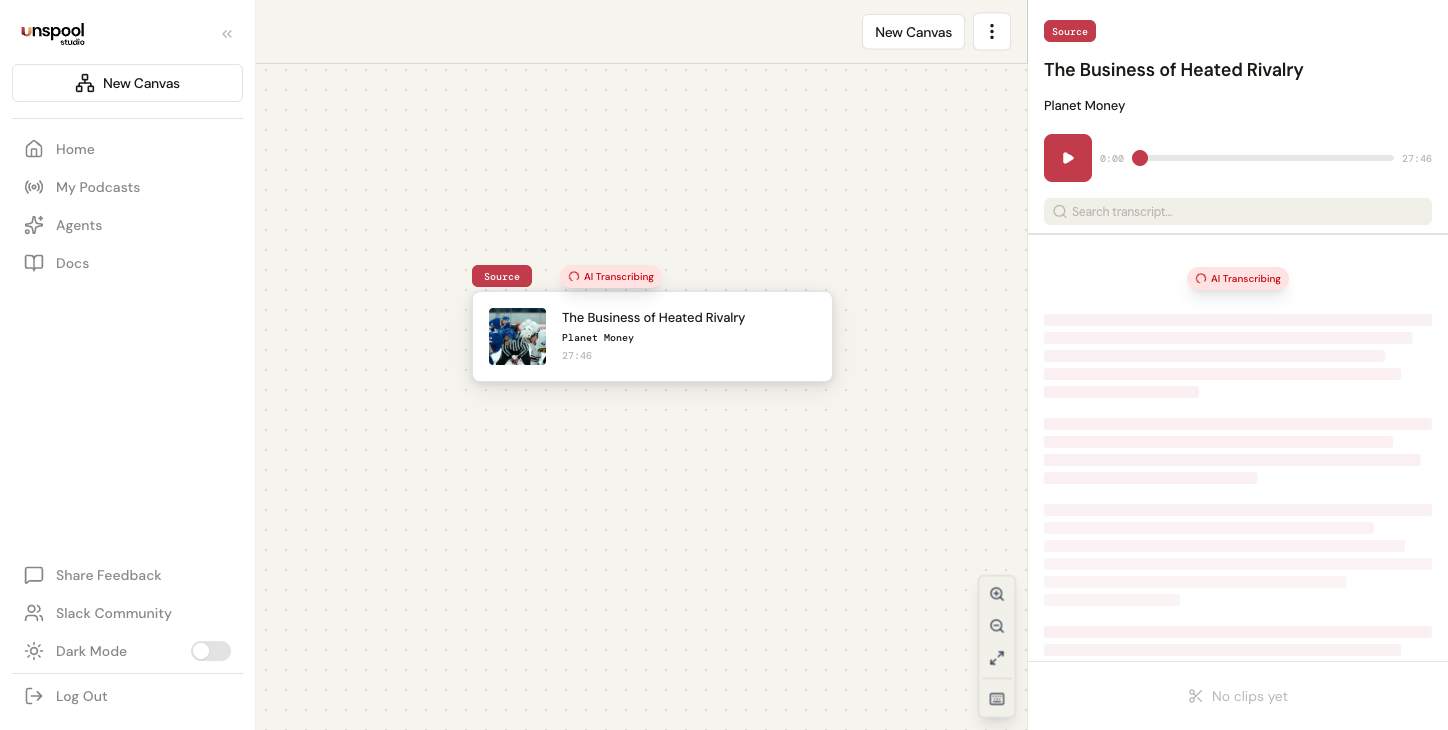
In the right panel, browse or search for a podcast by name — Unspool Studio searches the full iTunes directory. Click a podcast to see its episodes, then click the episode you want. It loads onto your canvas as a source card. No downloads or file uploads needed — audio streams directly from the podcast feed.
Tip: You can also upload your own audio files (MP3, M4A, WAV, and more) if you're working with content that isn't in the podcast directory.
Step 3: How does transcription work?
Transcription starts automatically as soon as you add an episode to your canvas. The AI takes it from here:
- The AI processes the full episode audio using advanced speech-to-text
- You get an accurate, word-level transcript broken into natural segments
- Speaker identification runs automatically — the AI labels who's speaking using podcast metadata
Short episodes often finish in under a minute. Longer episodes may take a few minutes, and long-form content (2+ hours) processes in the background so you don't need to keep the tab open. A progress indicator shows the current stage: Transcribing → Finding speakers → Suggesting clips.
Tip: Professionally produced podcasts with clear audio transcribe with the highest accuracy. You can always fix errors by editing the transcript text directly.
Step 4: How do AI-suggested clips work?
This is where Unspool Studio saves you the most time. After transcription, the AI automatically analyzes the entire episode and suggests the most shareable moments. Each suggestion includes:
- A title summarizing the moment
- A content type label — Quote, Insight, Story, Debate, or Funny
- Hook strength and viral potential scores so the best clips surface first
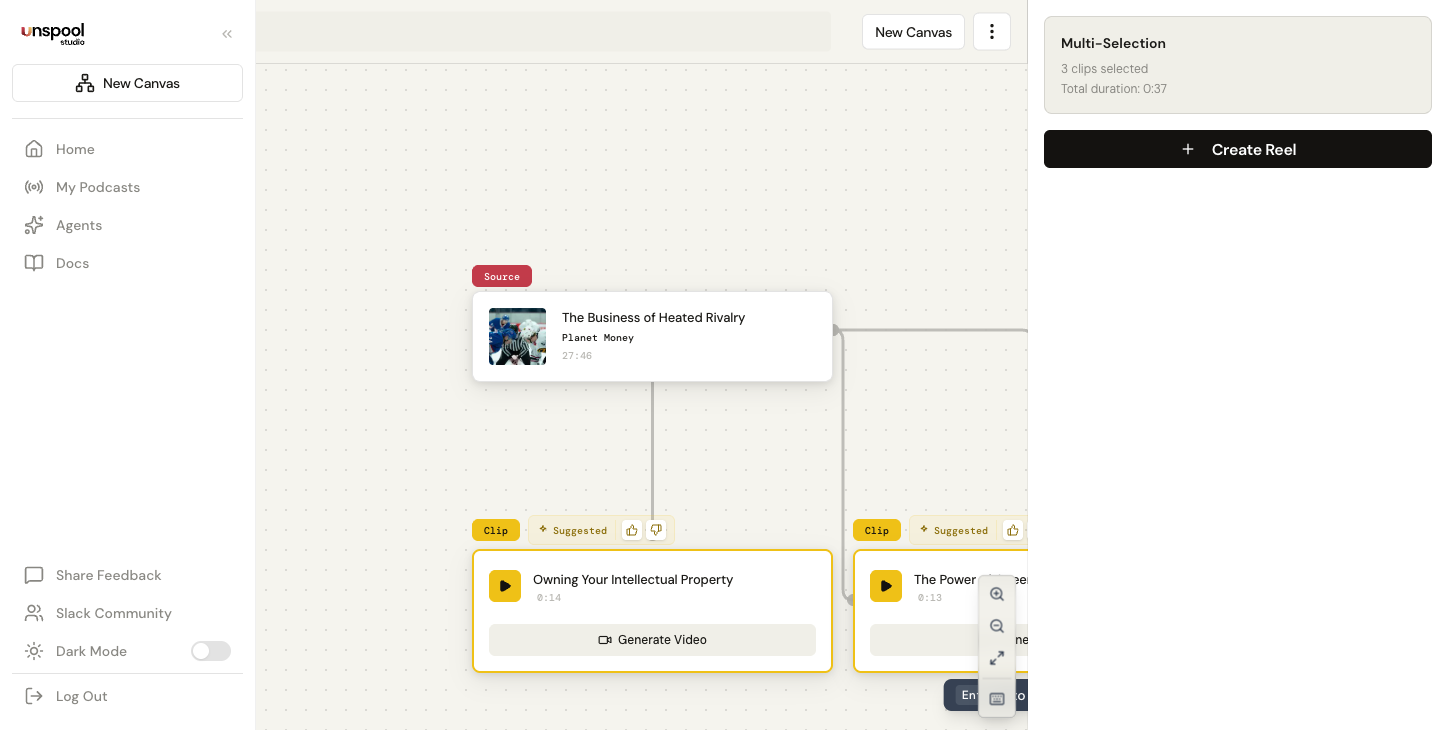
Instead of scrubbing through 60+ minutes of audio, you get a curated shortlist ready to review. Suggested clips appear as cards on the canvas automatically.
You can also click the sparkle icon on the source card and choose Suggest Clips to generate more suggestions, or browse the transcript and select segments manually.
What makes a good podcast clip?
The best clips start with a strong hook in the first 3 seconds, convey one clear idea, have no dead air, and stand alone without needing extra context. Clips can be as short as 10 seconds or as long as the moment demands. The AI looks for surprising insights, bold opinions, emotional moments, and standout stories — the elements that drive engagement on social media.
Step 5: How do I create a clip from a suggestion or selection?
From AI suggestions: Suggested clips are already on your canvas as clip cards — ready to preview, edit, or export immediately. No "Create Clip" step needed.
From manual selection: Click and drag across words in the transcript to highlight a segment, then press Enter or click the create button. A new clip card appears on the canvas with the boundaries you selected.
You can create as many clips as you want from a single episode. Drag clip cards around the canvas to organize your content.
Step 6: How do I fine-tune a clip?
Click on any clip card to open it in the right panel. Everything here is optional — most AI-suggested clips are ready to export as-is.
- Drag the boundary handles — Thin vertical grippers appear at the start and end of your clip in the transcript. Drag them to adjust where the clip begins and ends. Boundaries snap to word-level precision.
- Click any word to play from that point — Preview exactly how the clip sounds
- Edit transcript text — Click into any word to fix transcription errors. Edits update the subtitle overlay in video exports; the audio stays unchanged.
- Press spacebar to play/pause at any time
Step 7: How do I export my clip?
Click the export button on the clip panel to open the export modal. Choose your settings:
- Aspect ratio — 9:16 (vertical for Reels/TikTok/Shorts), 16:9 (landscape for YouTube/LinkedIn), or 1:1 (square for X/feeds)
- Color palette — 16 options (8 dark, 8 light) to match your brand
- Caption font — 9 font presets including Inter, Playfair Display, and Georgia
- Export mode — Export individual clips or combine multiple clips into a Reel (concatenated video)
Video exports include animated captions by default using the Gravitas template. Export takes seconds — the AI has already done the transcription and subtitle work.
After downloading, a social copy modal appears with AI-generated text tailored to your platform (X, LinkedIn, Threads, or Instagram). Copy it and post alongside your video.
Frequently Asked Questions
How long does it take to create a podcast clip?
Most users go from selecting an episode to having an exportable clip in under 5 minutes. Transcription is the longest phase (often under a minute for shorter episodes). Once you have the transcript and AI suggestions, selecting and exporting takes under a minute.
Can I manually select clips instead of using AI suggestions?
Yes. Browse the transcript in the right panel and click-drag to highlight any segment you want. Press Enter to create a clip from the selection. AI suggestions save time by surfacing the best moments automatically, but you have full control to create custom clips from any part of the episode.
What's the ideal podcast clip length for social media?
There's no single ideal length — it depends on the moment. Clips as short as 10 seconds can land perfectly if the moment is strong. Under 60 seconds tends to perform well across most platforms. The AI suggests clips based on content quality, not arbitrary length targets. You can set your preferred range in Clip Suggestions preferences if you want tighter control.
Can I create multiple clips from a single episode?
Yes — create as many clips as you need on a single canvas. This is ideal for batch content creation: extract 5–10 top moments from one episode and schedule them throughout the week. The AI suggests multiple clips automatically.
How accurate is the AI transcription?
Very high accuracy on professionally produced podcasts (95%+ on clear audio). Quality depends on audio clarity, speaker count, and recording quality. You can edit any word in the transcript directly — click on it and type your correction. Edits update subtitles in exports; the audio stays unchanged.
Does Unspool Studio identify who's speaking?
Yes. Speaker identification runs automatically after transcription. The AI uses podcast metadata — host names, guest info from RSS tags, and episode descriptions — to label each speaker throughout the transcript. High-confidence labels show the speaker's name; lower-confidence labels show "Speaker A", "Speaker B", etc.
Next: Export Formats — Choose the right format for Instagram, TikTok, YouTube, and more.